目录
奇技淫巧
# 替换传统的cat
sudo apt install bat
mkdir -p ~/.local/bin
ln -s /usr/bin/batcat ~/.local/bin/bat
echo 'export PATH="$HOME/.local/bin:$PATH"' >> ~/.zshrc
Basic command for linux
Write what comes to mind
uppercase word such as C is Ctrl
common command
- tldr anything
tldr -u # update tldr
- Compare two file
diff a b
md5sum a b
- 列出一个 C 语言项目中所有被包含过的头文件
find . -name "*.[ch]" | xargs grep -oh '#include.*' | sort | uniq
- 各种工具
- 文件检索 - cat, more, less, head, tail, file, find
- 输入输出控制 - 重定向,管道,tee, xargs
- 文本处理 - vim, grep, awk, sed, sort, wc, uniq, cut, tr
- 正则
- 系统监控 - jobs, ps, top, kill, free, dmesg, lsof
Vim
- 左下上右
h j k l ← ↓ ↑ →
- 保存退出
E-:wq
sed
sed 是一个拿来随手替换文本的工具(有时候 ubuntu 出锅了可以强行更新一波源而玄学地解决
sed -i 's/focal/jammy/g' /etc/apt/sources.list
s/要替换的正则/替换为/g
tmux
tmux 是一个终端管理工具,主要作用是保留正在运行的进程和切割终端。
Terminal multiplexer. It allows multiple sessions with windows, panes, and more.See also zellij and screen.More information: https://github.com/tmux/tmux.
Start a new named session:
tmux new -s {{name}}List existing sessions:
tmux lsAttach to the most recently used session [by name]:
tmux attach [-t {{name}}]Kill a session by name:
tmux kill-session -t {{name}}Rename a session by name:
tmux rename-session -t {{name}} {{new_name}}Exit the shell of the current pane, the pane closes with it (inside a tmux session):
C-dDetach from the current session (inside a tmux session):
C-b dSplit a new pane to right (inside a tmux session):
C-b %Split a new pane to down (inside a tmux session):
C-b "Create a new window (inside a tmux session):
C-b cSwitch between sessions and windows (inside a tmux session):
C-b wC-b oC-b C-oZoom in or zoom out a pane (inside a tmux session):
C-b zResize pane in direction of
(inside a tmux session): C-b C-<arrow key>Rename the current window (inside a tmux session):
C-b ,
tmux 自动保存与恢复插件
Tmux Resurrect 手动保存恢复 Tmux Continuum 定时保存恢复(依赖 Tmux Resurrect)
mkdir -p ~/.tmux
cd ~/.tmux
git clone git@github.com:tmux-plugins/tmux-resurrect.git
git clone git@github.com:tmux-plugins/tmux-continuum.git
vim ~/.tmux.conf, append to the end.
run-shell ~/.tmux/tmux-resurrect/resurrect.tmux
run-shell ~/.tmux/tmux-continuum/continuum.tmux
# 重新加载配置文件
tmux source-file ~/.tmux.conf
C-b + C-s: save
C-b + C-r: reload
CMake
lscpu 查看 cpu 数 time make 查看运行时间 make -j? ? 为 cpu 数,并行启动多个编译进程来加速。
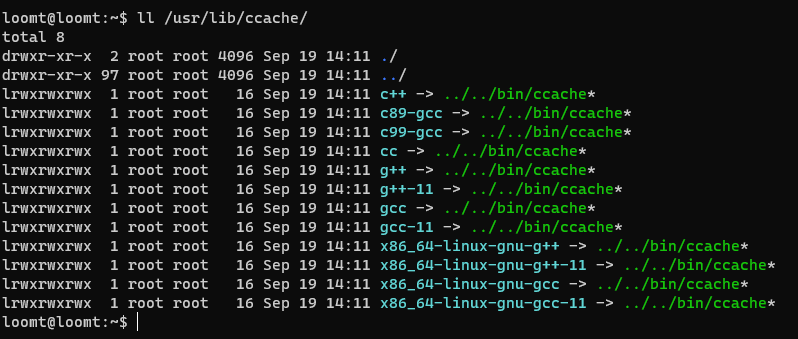
- ccache
将编译没发生变化的部分加速
# append to .zshrc
export PATH="/usr/lib/ccache:$PATH"
只输出命令但不执行
make -nB
Git
GDB
gcc main.c -Wall -Werror -o main -Wall 提示所有 Warning -Werror 将 Warning 视为错误
Inside GDB
breakpoint 114514 watch val next continue print val
str
strtok() stores the pointer in static variable where did you last time left off , so on its 2nd call , when we pass the null , strtok() gets the pointer from the static variable .
//左对齐 20 位并且前导 10 个 0
printf("%-20.010X",0x3f3f3f3f)
正则
元字符 . 将匹配除换行符以外的任意字符;
转义字符 \ 将下一字符标记为特殊字符、原义字符等,如 \d 匹配一个数字,或把 \. 解释为小数点而不是匹配任意字符的元字符;
元字符 \w 将匹配一个字母或数字或下划线或汉字,如 \w 可以匹配 1,也可以匹配 a;
元字符 \s 将匹配一个空白字符,如 \s 可以匹配 <space>,也可以匹配 <tab>,甚至可以匹配换行符;
元字符 \d 将匹配一个数字,如 \d 可以匹配 1,也可以匹配 2;
元字符 ^ 和 $ 分别匹配字符串的开始和结束,如 ^ 匹配字符串 abc 的字符 a 之前的那个位置,$则匹配字符 c 之后的那个位置;
限定符 * 将匹配前子表达式 0-n 次,如 \d*abc 可以匹配 1234abc,亦可以匹配 abc;
限定符 + 将匹配前子表达式 1-n 次,如 \d+abc 可以匹配 1234abc,但不能匹配 abc;
限定符 {n} 将匹配前子表达式 n 次,其中 n 为非负整数,如 \d{5}abc 可以匹配 12345abc,但不能匹配 123abc;
限定符 {n,m} 匹配前子表达式 n-m 次,其中 n,m 为非负整数,n<=m,如 \d{1,3}abc 可以匹配 1abc,13abc,但不能匹配 abc,然而,可以匹配 1234abc 的 234abc 部分;
字符类的表达可以使用一对中括号 [],如 [a-c1-5] 可以匹配 a ,b, c, 1, 2, 3, 4, 5 之中的任意一个字符,如表达式 [a-c1-5]{3} 可以匹配 a1c, 23b 等等字符串;
分支条件 abc|123 将匹配字符串 abc 或 123;
贪婪
a.*b
懒惰
a.*?b匹配最短的,以a开始,以b结束的字符串。如果把它应用于aabab的话,它会匹配aab(第一到第三个字符)和ab(第四到第五个字符)。
. 匹配除换行符以外的任意字符
\w 匹配字母或数字或下划线或汉字
\s 匹配任意的空白符
\d 匹配数字
\b 匹配单词的开始或结束
^ 匹配字符串的开始
$ 匹配字符串的结束
Example of POSIX regex in C
#include <sys/types.h>
#include <regex.h>
int regcomp(regex_t *preg, const char *regex, int cflags);
Prepare your regex for fast processing
int regexec(const regex_t *preg, const char *string, size_t nmatch, regmatch_t pmatch[], int eflags);
Do the matching
void regfree(regex_t *preg);
Free your compiled regex for a new "compiling"
size_t regerror(int errcode, const regex_t *preg, char *errbuf, size_t errbuf_size);
Retrieve some more information on why the regexec() failed
///////////////////////////////////////////
#include <sys/types.h>
#include <regex.h>
#include <stdio.h>
#include <stdlib.h>
int main(int argc, char *argv[])
{
regex_t regex;
int reti;
char msgbuf[100];
/* Compile regular expression */
reti = regcomp(®ex, "(.*)", REG_EXTENDED);
if (reti)
{
fprintf(stderr, "Could not compile regex\n");
exit(1);
}
/* Execute regular expression */
regmatch_t pmatch;
reti = regexec(®ex, "-(asdf)adsf", 1, &pmatch, 0);
// 第三个参数如果是 0,则仅判断是否匹配
printf("%d %d",pmatch.rm_so,pmatch.rm_eo);
if (!reti)
{
puts("Match");
}
else if (reti == REG_NOMATCH)
{
puts("No match");
}
else
{
regerror(reti, ®ex, msgbuf, sizeof(msgbuf));
fprintf(stderr, "Regex match failed: %s\n", msgbuf);
exit(1);
}
/* Free compiled regular expression if you want to use the regex_t again */
regfree(®ex);
return 0;
}
some examples
((2[0-4]\d|25[0-5]|[01]?\d\d?)\.){3}(2[0-4]\d|25[0-5]|[01]?\d\d?)
https://deerchao.cn/tutorials/regex/regex.htm#mission
.zshrc
# alias
alias apigen="goctl api go -api *.api -dir ../  --style=goZero"
alias proxy="source /bin/proxy.sh"
alias ll="ls -alF"
alias la="ls -A"
alias l="ls -CF"
alias say="echo"

. /bin/proxy.sh set

# Enable Powerlevel10k instant prompt. Should stay close to the top of ~/.zshrc.
# Initialization code that may require console input (password prompts, [y/n]
# confirmations, etc.) must go above this block; everything else may go below.
if [[ -r "${XDG_CACHE_HOME:-$HOME/.cache}/p10k-instant-prompt-${(%):-%n}.zsh" ]]; then
  source "${XDG_CACHE_HOME:-$HOME/.cache}/p10k-instant-prompt-${(%):-%n}.zsh"
fi

# If you come from zsh you might have to change your $PATH.
# export PATH=$HOME/bin:/usr/local/bin:$PATH

# Path to your oh-my-zsh installation.
export ZSH="$HOME/.oh-my-zsh"

# Set name of the theme to load --- if set to "random", it will
# load a random theme each time oh-my-zsh is loaded, in which case,
# to know which specific one was loaded, run: echo $RANDOM_THEME
# See https://github.com/ohmyzsh/ohmyzsh/wiki/Themes
# ZSH_THEME="robbyrussell"
ZSH_THEME="powerlevel10k/powerlevel10k"

# Set list of themes to pick from when loading at random
# Setting this variable when ZSH_THEME=random will cause zsh to load
# a theme from this variable instead of looking in $ZSH/themes/
# If set to an empty array, this variable will have no effect.
# ZSH_THEME_RANDOM_CANDIDATES=( "robbyrussell" "agnoster" )

# Uncomment the following line to use case-sensitive completion.
# CASE_SENSITIVE="true"

# Uncomment the following line to use hyphen-insensitive completion.
# Case-sensitive completion must be off. _ and - will be interchangeable.
# HYPHEN_INSENSITIVE="true"

# Uncomment one of the following lines to change the auto-update behavior
# zstyle ':omz:update' mode disabled  # disable automatic updates
# zstyle ':omz:update' mode auto      # update automatically without asking
# zstyle ':omz:update' mode reminder  # just remind me to update when it's time

# Uncomment the following line to change how often to auto-update (in days).
# zstyle ':omz:update' frequency 13

# Uncomment the following line if pasting URLs and other text is messed up.
# DISABLE_MAGIC_FUNCTIONS="true"

# Uncomment the following line to disable colors in ls.
# DISABLE_LS_COLORS="true"

# Uncomment the following line to disable auto-setting terminal title.
# DISABLE_AUTO_TITLE="true"

# Uncomment the following line to enable command auto-correction.
# ENABLE_CORRECTION="true"

# Uncomment the following line to display red dots whilst waiting for completion.
# You can also set it to another string to have that shown instead of the default red dots.
# e.g. COMPLETION_WAITING_DOTS="%F{yellow}waiting...%f"
# Caution: this setting can cause issues with multiline prompts in zsh < 5.7.1 (see #5765)
# COMPLETION_WAITING_DOTS="true"

# Uncomment the following line if you want to disable marking untracked files
# under VCS as dirty. This makes repository status check for large repositories
# much, much faster.
# DISABLE_UNTRACKED_FILES_DIRTY="true"

# Uncomment the following line if you want to change the command execution time
# stamp shown in the history command output.
# You can set one of the optional three formats:
# "mm/dd/yyyy"|"dd.mm.yyyy"|"yyyy-mm-dd"
# or set a custom format using the strftime function format specifications,
# see 'man strftime' for details.
# HIST_STAMPS="mm/dd/yyyy"

# Would you like to use another custom folder than $ZSH/custom?
# ZSH_CUSTOM=/path/to/new-custom-folder

# Which plugins would you like to load?
# Standard plugins can be found in $ZSH/plugins/
# Custom plugins may be added to $ZSH_CUSTOM/plugins/
# Example format: plugins=(rails git textmate ruby lighthouse)
# Add wisely, as too many plugins slow down shell startup.
plugins=(
    z
    docker
    git
    sudo
    zsh-autosuggestions
    # zsh-syntax-highlighting
)

source $ZSH/oh-my-zsh.sh

# User configuration

# export MANPATH="/usr/local/man:$MANPATH"

# You may need to manually set your language environment
# export LANG=en_US.UTF-8

# Preferred editor for local and remote sessions
# if [[ -n $SSH_CONNECTION ]]; then
#   export EDITOR='vim'
# else
#   export EDITOR='mvim'
# fi

# Compilation flags
# export ARCHFLAGS="-arch x86_64"

# Set personal aliases, overriding those provided by oh-my-zsh libs,
# plugins, and themes. Aliases can be placed here, though oh-my-zsh
# users are encouraged to define aliases within the ZSH_CUSTOM folder.
# For a full list of active aliases, run `alias`.
#
# Example aliases
# alias zshconfig="mate ~/.zshrc"
# alias ohmyzsh="mate ~/.oh-my-zsh"

# To customize prompt, run `p10k configure` or edit ~/.p10k.zsh.
[[ ! -f ~/.p10k.zsh ]] || source ~/.p10k.zsh

#ccache
export PATH="/usr/lib/ccache:$PATH"
export NEMU_HOME=/home/loomt/CSLearning/PA/nemu
export AM_HOME=/home/loomt/CSLearning/PA/abstract-machine
# go
#根目录
export GOROOT=/usr/local/go
#工作目录
export GOPATH=/home/loomt/go
#bin目录
export GOBIN=$GOPATH/bin
export PATH=$PATH:$GOPATH
export PATH=$PATH:$GOBIN
export PATH=$PATH:$GOROOT/bin
WSL
不访问 windows 路径,但也无法用code .在 vscode 打开当前目录
# /etc/wsl.conf
[interop]
appendWindowsPath = false
reference